
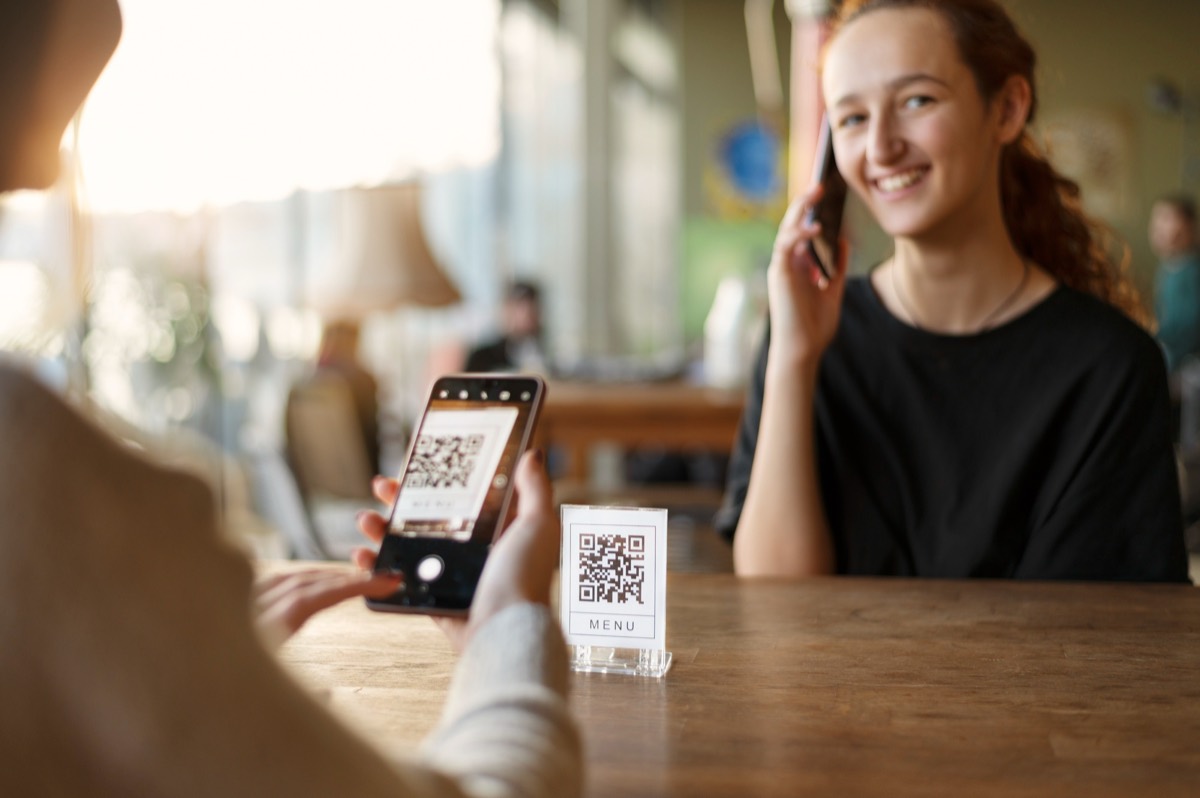
- Use a dynamic QR code so the printed table cards never change when the menu does.
- A PDF is the fastest menu to publish; a mobile web page is easier to read and to update item by item. Either works behind the same code.
- Print the code at least 2.5 cm wide with a clear margin, test it with two phones, and read the scan log to see your busy hours.
A QR code menu is a printed code on the table that opens your menu on the guest's phone. Make it with a dynamic QR code so you can swap the menu file or page later without reprinting a single card. The setup takes about fifteen minutes; most of the work is deciding what the code should open.
Step 1: decide what the code opens
You have three realistic options. All three sit behind the same QR code, and with a dynamic code you can move between them later.
| Option | Good for | Watch out for |
|---|---|---|
| PDF of the printed menu | Fastest to publish; matches your design exactly | Multi-column layouts are hard to read on a phone; every price change means a new export |
| A simple web page | Easy to read on a phone, fast to load, quick edits | Needs somewhere to host it (your website, a page builder, a Google Doc published to the web) |
| An online ordering page | Venues that take orders at the table | Commission or subscription from the ordering platform |
If you are starting from a PDF, make it single-column and export it for screen, not for print. A 20 MB print PDF on a slow mobile connection is the most common reason a QR menu "doesn't work".
Step 2: create a dynamic QR code
A static QR code encodes the menu's URL directly. If the file is replaced or the page moves, every printed card is dead. A dynamic code encodes a short redirect link instead; you change where that link points in a dashboard and the cards keep working. All QList codes are dynamic, and they are free with no expiry.
In QList:
- Create a free account.
- Choose File if you are uploading a PDF (up to 50 MB), or URL if the menu is a web page.
- Name the code after the venue or the table section so you can find it later.
- Download the code image (PNG for print layouts, SVG if your designer asks for it).
If you run more than one venue, put each venue's codes in a Project Group.
Step 3: design and print the table cards
- Size. Print the code at least 2.5 cm wide. On an A6 table card 4 cm works well.
- Quiet zone. Leave a blank margin around the code of roughly four modules (the small squares). Do not let borders, logos or text touch it.
- Contrast. Dark code on a light background. Avoid light-on-dark and avoid printing the code over a photo.
- A short instruction. "Scan for the menu" next to the code removes hesitation. Add the plain URL in small type as a fallback for the few guests whose camera app will not scan.
- Material. Laminated cards or a small acrylic stand survive cleaning. Stickers on the table wear out at the edges, and a damaged edge breaks the quiet zone.
Step 4: test before the print run
Scan the printed proof with at least two phones, one iPhone and one Android, from a normal sitting distance in the venue's actual lighting. Check that the menu opens within a few seconds on mobile data, not only on Wi-Fi.
Step 5: update the menu without touching the cards
When the menu changes, upload the new PDF or edit the web page. If the file is uploaded through the QR code tool, replace it there; if you used a URL code, the page keeps its address and nothing in the dashboard needs to change. Either way the cards on the tables are untouched.
For seasonal menus, keep one code per venue and simply change what it points at. For a lunch and a dinner menu, two codes on the same card, each labelled, work better than one code pointing at a combined document.
Step 6: read the scan log
A dynamic code records each scan with time, device and rough location. In a venue that tells you:
- which hours and days guests use the digital menu most,
- whether a new placement (bar, terrace, window) gets used,
- whether the printed cards are still being scanned months later, or need replacing.
QList's scan table can be grouped by date and filtered to a range, and bot hits (link previews, scanners) are flagged so they do not inflate the counts.
Keep a printed menu too
Some guests prefer paper, some phones are out of battery, and some tables are in a basement with no signal. A few printed menus at the counter cost almost nothing and remove the only real complaint about QR menus.
What QList does not do yet
QList does not build the menu page for you. It hosts the file or redirects to the page you already have, and tracks the scans. A built-in menu editor (e-menus) is in development; until then, a PDF or a page on your own site behind a QList file or URL code is the setup we recommend.
Related
- QR code tracking: what each scan records.
- How to track QR code scans: the general version of this guide, for flyers, posters and packaging.
Frequently asked questions
Do I need an app to make a QR code menu?
No. You need a menu file or web page, and a QR code generator. If the generator makes dynamic codes, you can replace the menu later without reprinting. No app is needed on the guest's phone either; the camera app reads QR codes on iOS and Android.
PDF menu or web page?
A PDF is quicker to produce and matches your printed design. A web page is easier to read on a phone, loads faster, and lets you change one price without re-exporting a file. Start with the PDF if that is what you have; move to a page when you are changing prices often.
How big should the QR code be on a table card?
At least 2.5 cm (1 inch) wide, with a blank margin around it of about four modules (the small squares). Guests scan from 20 to 40 cm away. Bigger is fine; smaller starts to fail on older phones.
Can I see how many people looked at the menu?
Yes, if the code is dynamic. The scan log shows each scan with time and device, so you can see which hours and days guests use the digital menu most.